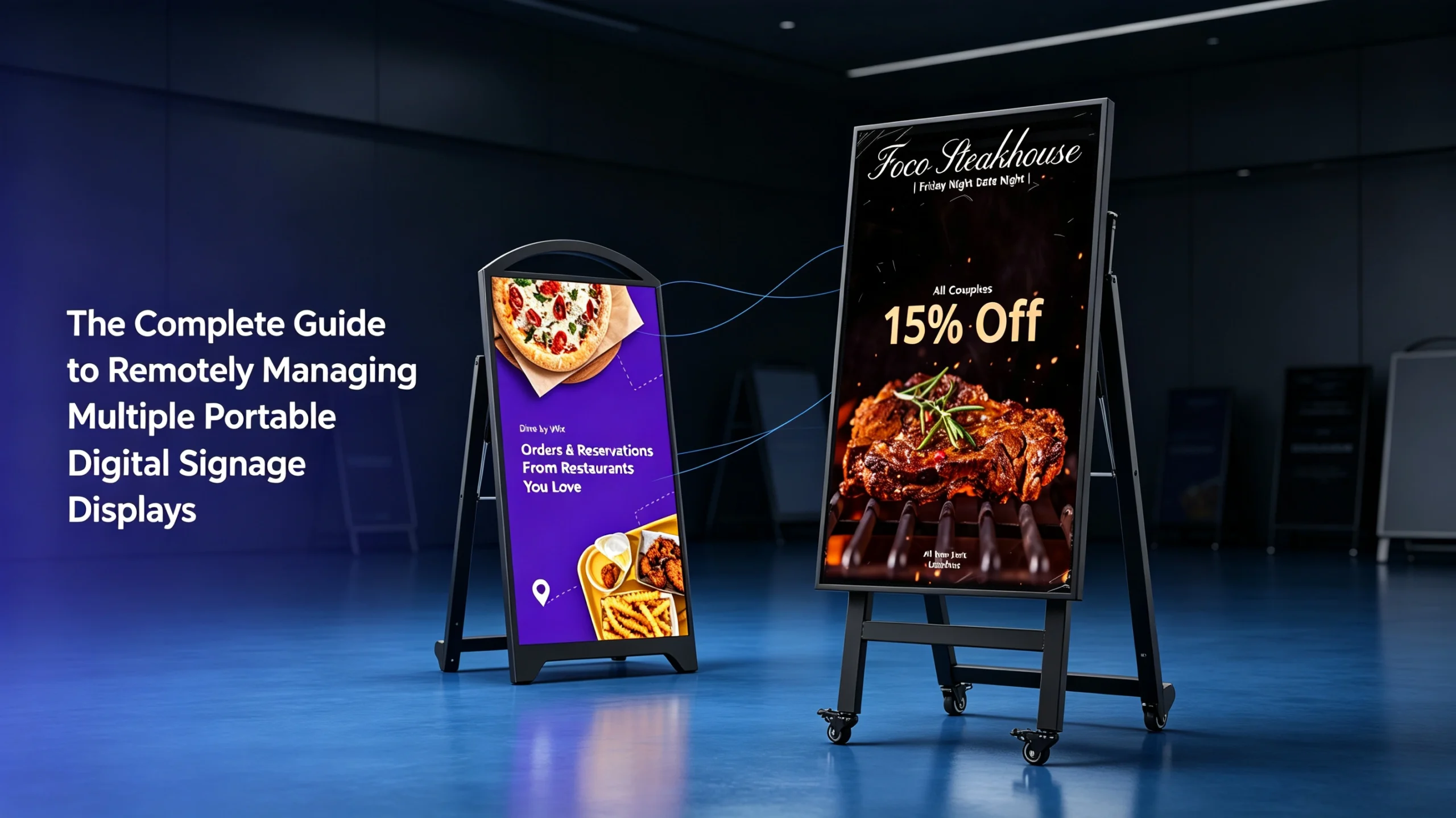
Learn how to efficiently manage a fleet of portable digital signage displays remotely. Discover cloud-based CMS solutions, troubleshooting tips, and best practices for multi-location digital signage.
Introduction
In the modern era of dynamic marketing and communication, digital signage has become a cornerstone for businesses ranging from retail chains to corporate offices. As companies scale, the challenge shifts from simply installing a few screens to effectively managing a vast, geographically dispersed network of displays. For businesses utilizing portable digital signage—screens designed for flexibility, pop-up events, or temporary installations—remote management is not just a convenience; it is a critical operational necessity.
Imagine having to manually update content on 50 screens across 20 different cities. The cost and time involved would be astronomical. This is where robust remote management systems come into play. This guide will walk you through the strategies, tools, and best practices for remotely managing multiple portable digital signage displays, ensuring your message is always timely, consistent, and impactful.
Why Remote Management is a Game-Changer for Portable Signage
Portable digital signage, such as the models found at Sundek Display’s product page, offers unparalleled flexibility. They can be moved from a trade show floor to a hotel lobby, or from a retail aisle to an outdoor event. However, this very mobility creates unique challenges.
Traditional signage requires a physical connection or a person on-site to change a USB drive. Remote management, powered by cloud-based software, eliminates this need. It allows you to:
- Push updates instantly across your entire network from a single dashboard.
- Schedule content based on time of day, location, or specific events.
- Monitor display health in real-time, receiving alerts if a screen goes offline.
- Reduce operational costs by eliminating the need for on-site technical visits.
The Core Components of a Remote Management System
To manage multiple displays remotely, you need three essential components working in harmony: the displays themselves, the network connection, and the management software (CMS).
1. The Displays: Built for Connectivity
Not all portable displays are created equal. When building a fleet, you must ensure your hardware is ready for remote deployment. Look for displays that feature built-in Wi-Fi, Ethernet ports, or 4G/5G cellular modules. Your displays should also support “Wake-on-LAN” or scheduled power-on/off functions to save energy.
For businesses looking to invest in reliable, network-ready hardware, exploring specialized commercial displays is the first step. You can find a range of professional-grade options here: https://sundekdisplay.com/product/.
2. The Network: The Backbone of Remote Management
A stable internet connection is non-negotiable. For fixed locations, a wired Ethernet connection is the most reliable. For truly portable or temporary setups, a dedicated 4G/5G hotspot or a built-in cellular module is ideal. Always ensure your network has sufficient bandwidth to handle high-resolution video content, especially if you are pushing updates to multiple screens simultaneously.
3. The Software: The Command Center
This is where the magic happens. A Cloud-Based Content Management System (CMS) allows you to control all your displays from a web browser. When choosing a CMS, look for these features:
- User-Friendly Interface: Drag-and-drop content creation.
- Multi-User Access: Assign different permissions to different team members (e.g., a regional manager can only edit screens in their region).
- Real-Time Monitoring: See which screens are online, what content is playing, and receive instant alerts for failures.
- Content Scheduling: Create playlists that change automatically based on the day, time, or even weather triggers.
Step-by-Step: How to Set Up Remote Management for Your Fleet
Implementing a remote management system requires careful planning. Follow these steps to ensure a smooth deployment.
Step 1: Standardize Your Hardware
To simplify management, try to use the same model or brand of portable digital signage across your network. This ensures compatibility with the CMS and simplifies troubleshooting. If you have a mix of old and new screens, check if they support the same management protocols.
Step 2: Choose the Right CMS
There are many CMS platforms available, ranging from free open-source options to premium enterprise solutions. For managing multiple portable displays, a cloud-based subscription model is usually the best choice. It offers scalability and requires no expensive server infrastructure on your end.
Step 3: Configure Network Settings
Before deploying your screens, pre-configure their network settings. If you are using a cellular module, ensure the SIM cards are active and have sufficient data plans. For Wi-Fi, set up a secure network with a strong password. It is also wise to set up a VPN (Virtual Private Network) for an extra layer of security, preventing unauthorized access to your displays.
Step 4: Group and Organize Your Displays
In your CMS, create logical groups. For example, group screens by “Region,” “Store Type,” or “Event.” This allows you to push a single update to a specific group without affecting the others. For instance, you can update all “New York” screens with a localized promotion while leaving the “London” screens untouched.
Step 5: Create and Schedule Content
Use the CMS to design your content. Most systems allow you to upload images, videos, and even web pages. Use the scheduling feature to set when each piece of content should play. For portable signage, you might want to schedule different content for “Trade Show Mode” versus “Retail Mode.”
Best Practices for Managing Multiple Portable Displays
Managing a fleet is about more than just technology; it’s about strategy.
1. Keep Content Simple and Legible
Portable displays are often viewed from a distance or in passing. Ensure your text is large, your visuals are high-contrast, and your message is clear within seconds. Avoid clutter.
2. Implement a Content Calendar
Plan your content weeks or months in advance. This is especially crucial for seasonal promotions or product launches. A shared calendar between your marketing and IT teams ensures everyone is on the same page.
3. Monitor Performance and Uptime
Regularly check your CMS dashboard. If a screen is offline, address it immediately. Many CMS platforms offer “proof-of-play” reports, which are essential for verifying that your ads actually ran, especially for compliance or billing purposes.
4. Plan for Connectivity Failures
What happens if the Wi-Fi goes down at a remote location? Your portable display should be able to continue playing its last downloaded playlist. Ensure your CMS supports “offline playback” so that a temporary network outage doesn’t result in a blank screen.
5. Security First
Digital signage can be a target for hackers. Always change default passwords, use encrypted connections (HTTPS), and keep your CMS software updated. For portable displays used in public spaces, consider disabling USB ports to prevent unauthorized content changes.
Troubleshooting Common Remote Management Issues
Even with the best planning, issues will arise. Here’s how to handle them remotely:
- Screen is Offline: Check if the display is powered on. If it is, check the network connection. Sometimes a simple remote reboot via the CMS can solve the issue.
- Content Not Updating: Verify that the screen is connected to the network and that the scheduled content is actually assigned to that specific screen or group. Check if the display’s storage is full.
- Lagging Video: This is usually a bandwidth issue. Try lowering the resolution of your video content or scheduling large updates during off-peak hours.
- Screen Freezing: If a display freezes, a remote restart command from the CMS is your first line of defense. If that fails, you may need to dispatch a local technician.
The Future of Remote Signage Management
The future is increasingly automated. We are moving towards AI-driven content optimization, where the CMS will automatically adjust content based on real-time data like foot traffic or weather. For portable signage, this means a display at a sunny outdoor event could automatically switch to a higher brightness mode and show sunscreen ads, while the same display indoors might show a different promotion.
Conclusion
Remotely managing multiple portable digital signage displays is a powerful way to scale your communication efforts without scaling your operational costs. By investing in the right hardware—like the professional displays available at Sundek Display —and pairing them with a robust cloud-based CMS, you can ensure your message is always consistent, timely, and impactful, no matter where your screens are located.
Remember, the goal is to work smarter, not harder. With a solid remote management strategy, your digital signage network becomes a dynamic, responsive asset rather than a logistical burden.